Spatial Scale Calibration
For images that have been calibrated by the scanner during acquisition, measurements are displayed in millimeters, square millimeters, cubed millimeters or other standard units set in the Preferences dialog. For images, regions of interest, and multi-ROIs that are not calibrated, you can use measurement calibration to update spacing and obtain the correct values. To perform a measurement calibration, the object should include a fiducial marker that indicates its exact length or contain an object of known dimensions.
 How to Perform a Spatial Scale Calibration
- Open the uncalibrated image, region of interest, or multi-ROI.
- Zoom-in on the fiducial marker or object of known dimensions in a 2D or 3D view, recommended.
Note You can remove image interpolation to better view the edges of the marker or object in 2D views. To do so, choose Interpolation > Nearest in the 2D settings box on the Data Properties and Settings panel.
- Select the Ruler tool and then draw a line that is exactly the same length as the marker or object.
- Right-click the object you need to calibrate in the Data Properties and Settings panel and then choose Calibrate Spatial Scale in the pop-up menu.
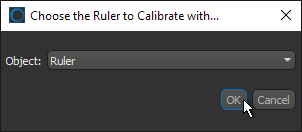
- Choose the required ruler in the Choose the Ruler to Calibrate With dialog and then click OK.
- Enter the known length of the ruler in the Expected Length of Chosen Ruler dialog and then click OK.
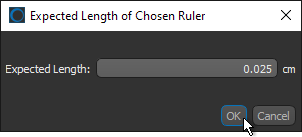
Spacing is updated automatically (see Image Properties).


